Edge device properties
Screen 1
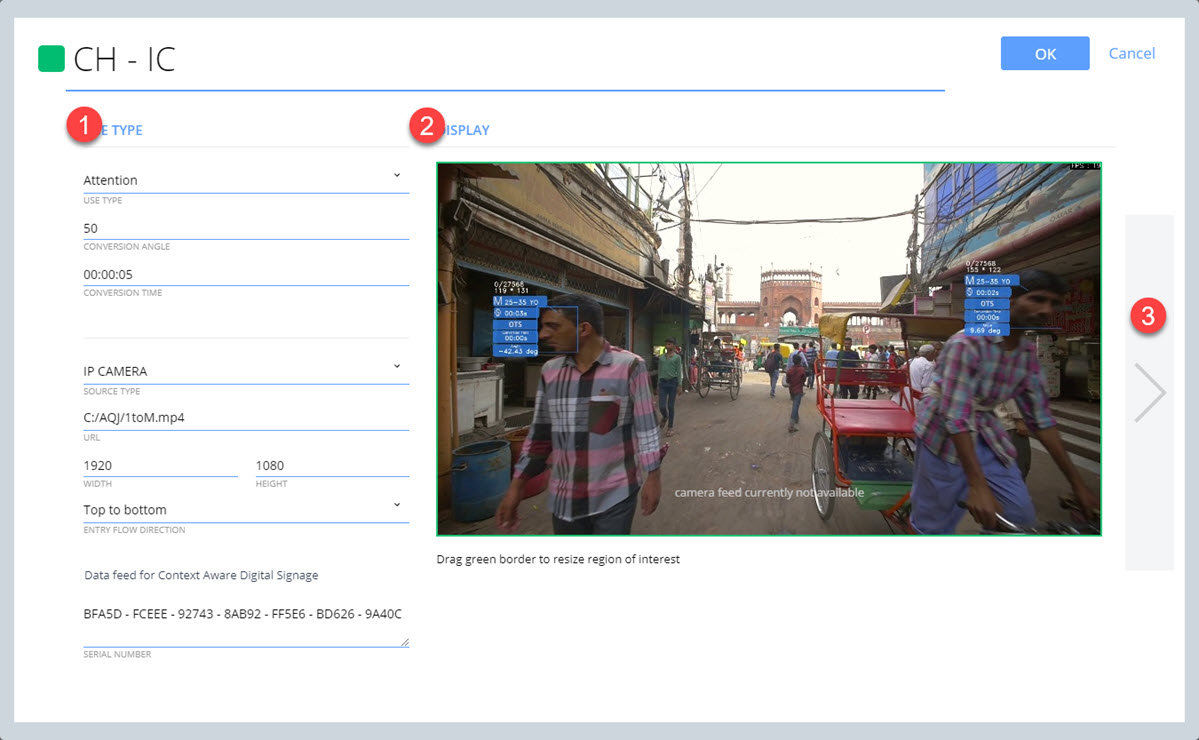
1. TYPE section
- TYPE: Select the type of activity you wish to assign to the camera.
- Options are:
- CONVERSION ANGLE: The number of degrees the camera will take into account to detect a conversion. The default value is 50.
- CONVERSION TIME: The length of time a person's face must be within the conversion angle for Edge device's camera to register a conversion. The default value is 5 seconds.
- SOURCE TYPE: Options are USB Camera and IP Camera depending on the type of capture device in use.
- URL / CAPTURE INPUT: This field will change according to the source type selected.
- URL appears when source type is IP Camera. Enter the camera's IP or DNS address.
- CAPTURE INPUT appears when source type is USB Camera. Enter the camera's USB port number.
- NOTE: You can run Aquaji image analysis on a video file such as an MP4. Select IP Camera as the SOURCE TYPE and enter the file location (Windows Path) in the URL field.
For example: C:\Users\Navori\Desktop\AQJ\acquisition.mp4 - WIDTH / HEIGHT: Enter the camera resolution in pixels.
- ENTRY FLOW DIRECTION: Select the audience's direction in reference to the Edge device's camera location. Selecting the wrong direction will impact the result's accuracy.
Options are: - Top to bottom
- Bottom to top
- Left to right
- Right to left
- CONTEXT AWARE DIGITAL SIGNAGE FEED: You can connect Aquaji to Navori QL to activate or trigger digital signage content based on the viewer's profile. Click here for details.
2. DISPLAY section
Under DISPLAY you will find a live view as seen by your Edge device's camera.
The green border around the image represents the area that Aquaji will analyze and by default, this area covers the entire image. Resize the frame using your mouse and Aquaji will only analyze the selected area. You may want to do this to improve performance when there are a lot of people to scan in a scene.
3. Next page
Click to go to the next page.
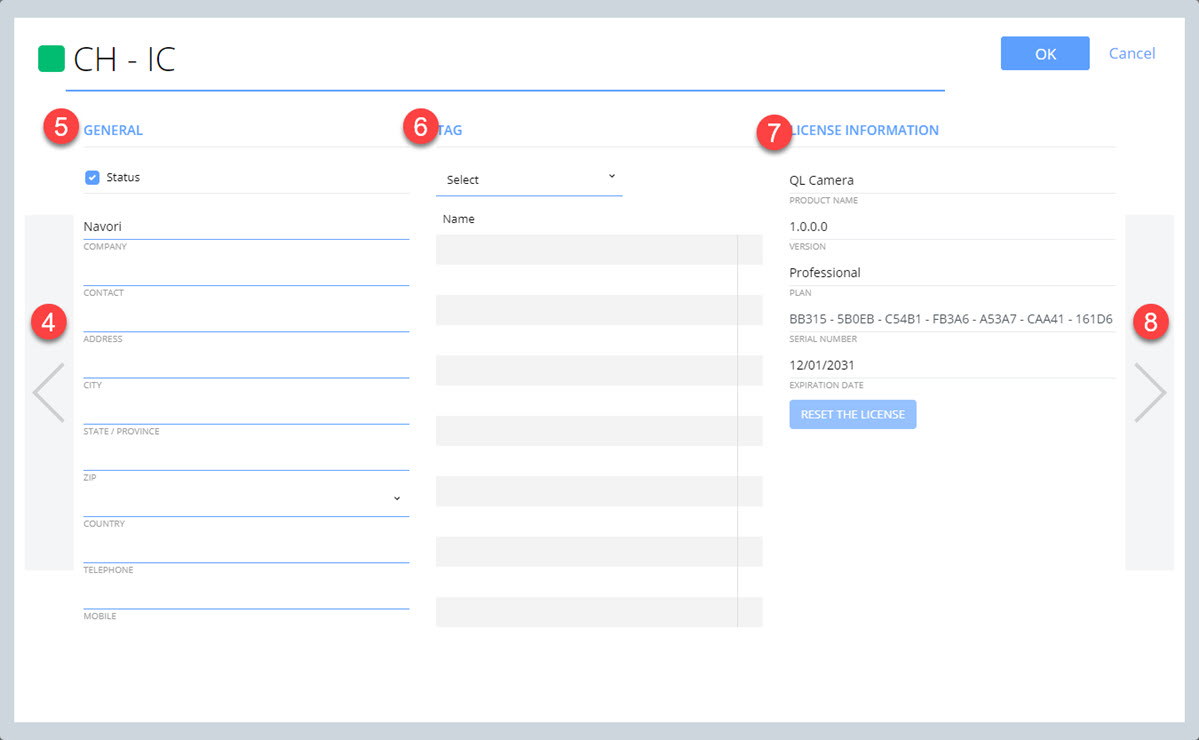
4. Previous page
Click to go to the previous page.
5. GENERAL information
STATUS: The STATUS check-box is selected by default, meaning the Aquaji UI will display the Edge device's current status (green/yellow/red). If you deselect this box, a gray status will be shown until the option is selected.
The fields under the STATUS check-box refer to information where the Edge device is located. For example, you can enter information that will let you reach someone on-site for maintenance purposes, like their landline or mobile phone number.
6. TAG
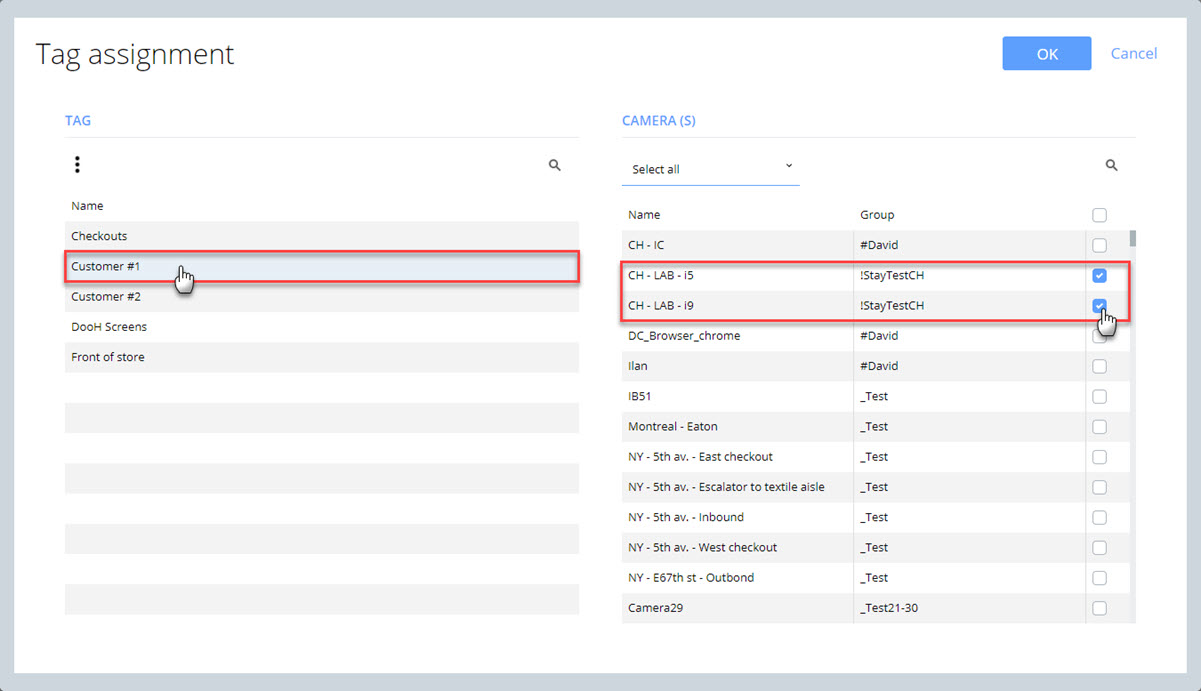
You can assign tags to any Edge device to quickly select them across multiple groups.
To create new tags proceed as follows:
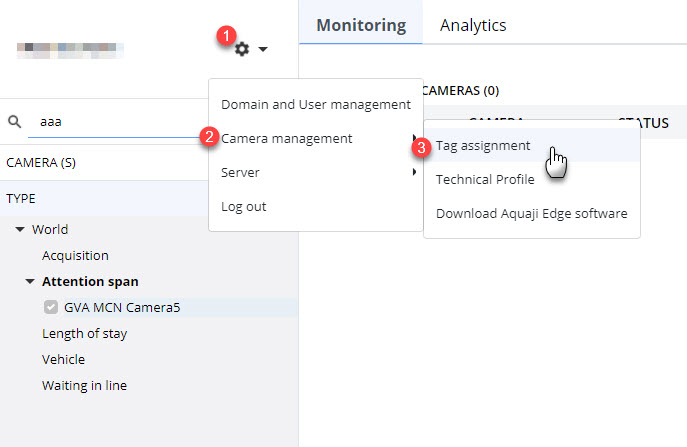
- Select the Main Menu (gear icon) near the top of the screen.
- Select Camera management
- Select Tag assignment
The Tag assignment window will open.
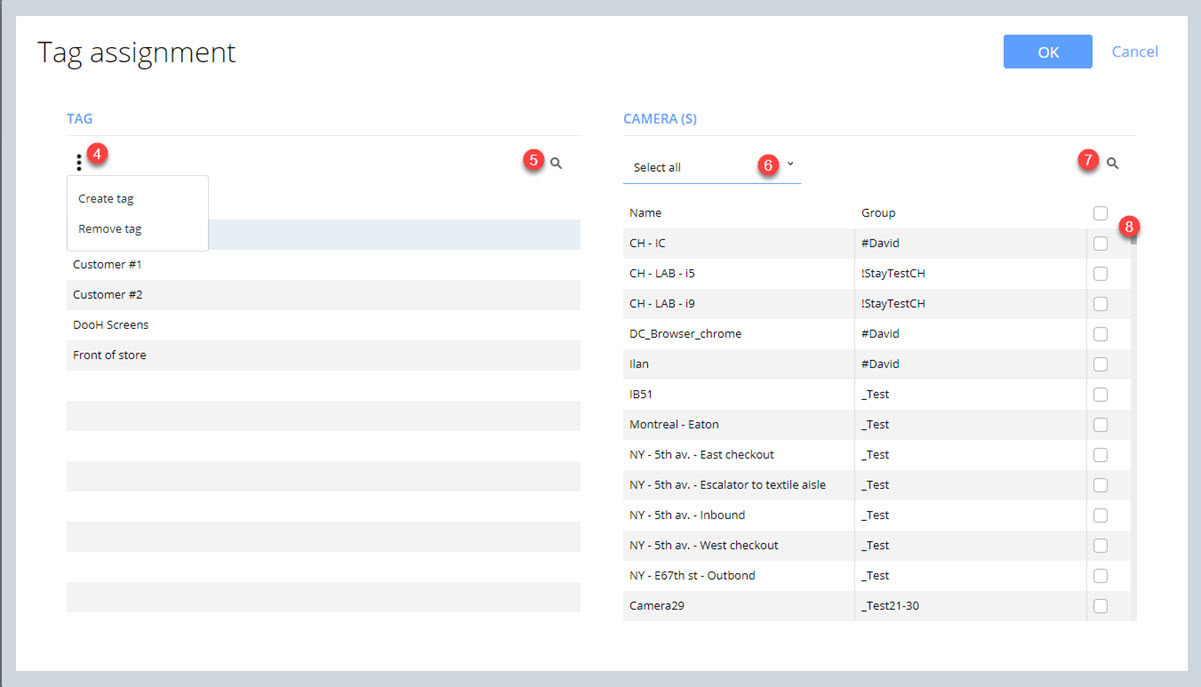
- Click the options button to either create or delete a tag. Tags are listed in the table below.
To delete a tag, click it in the table and then select Remove tag. - You can use the search engine to locate any tag in the table.
- You can filter the results in the camera list by selecting a group name from the Select pull-down menu. The default is Select all which lists all your cameras.
- You can use the search engine to locate any camera in the table.
- To assign tags to specific cameras, click the tag on the left and then select each camera in the right table. Clicking the check-box at the top selects all the cameras in the table.
Click OK to confirm your choices.
Here is the result in the Edge device's properties:
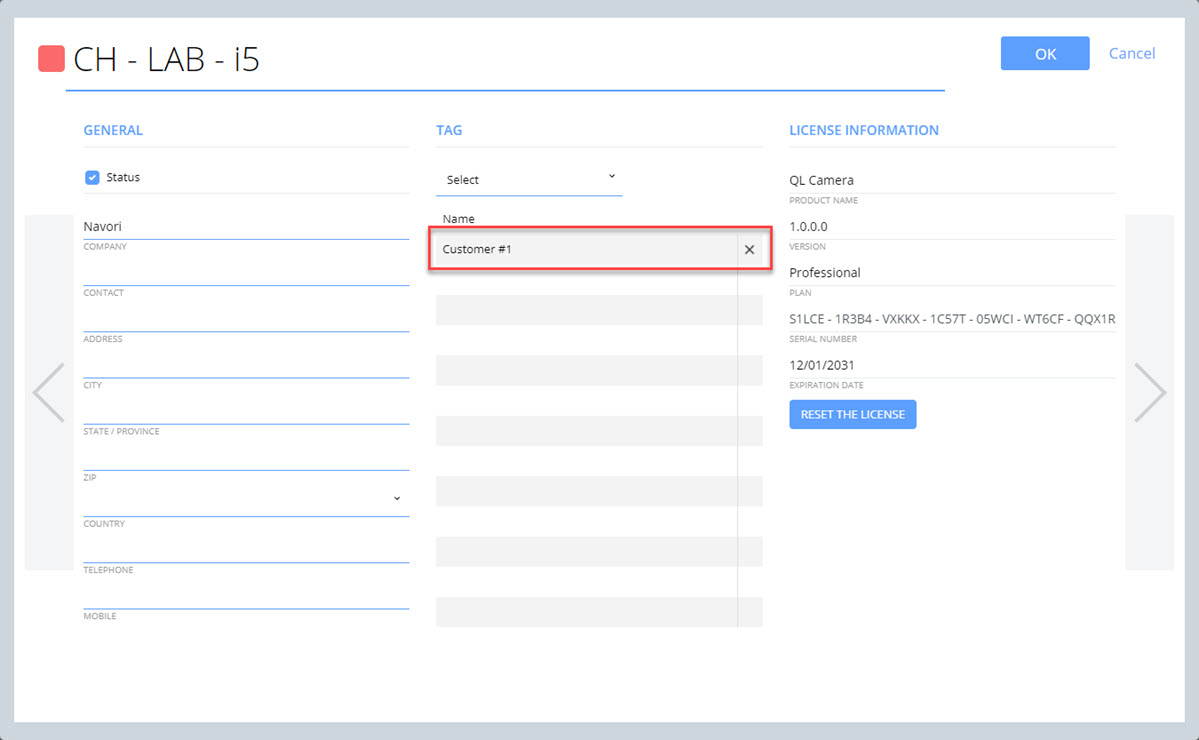
Note: You can also add tags to any Edge device by clicking the Select pull-down field on this page. You can only select from a list of existing tags from this page. New tags can only be created in the Tag assignment window.
7. License information
PRODUCT NAME: The name of the software.
VERSION: The Aquaji Edge device software version number.
PLAN: Currently, Aquaji is only available in Professional versions. Other versions may become available in the future.
SERIAL NUMBER: The Aquaji Edge device software license number.
EXPIRATION DATE: The Aquaji Edge device software expiry date.
The RESET THE LICENSE button is used to transfer an Aquaji Edge device license to a new device. Click here for more details.
8. Next page
Click to go to the next page.
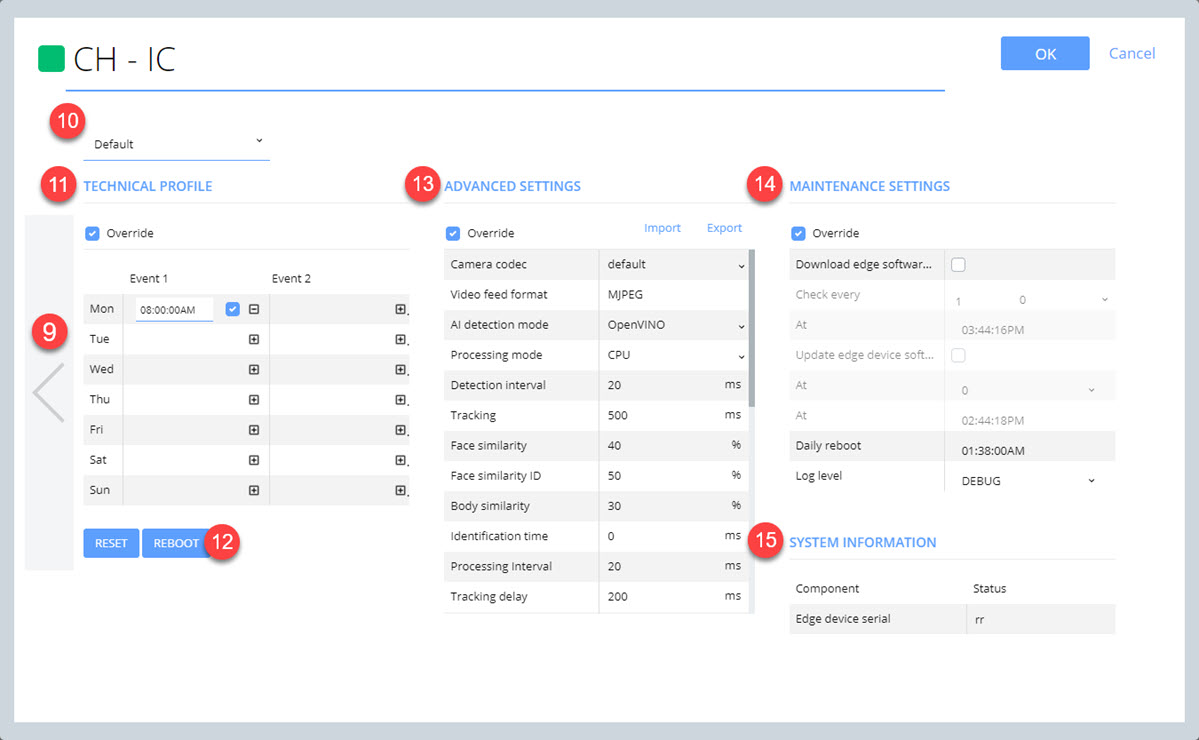
9. Previous page
Click to go to the previous page.
10. Technical profile pull-down menu
Click here for more information about technical profiles.