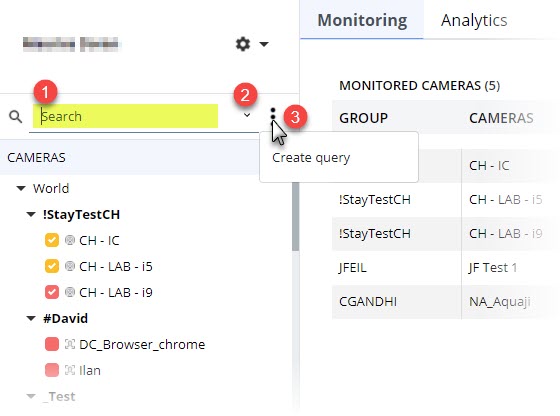
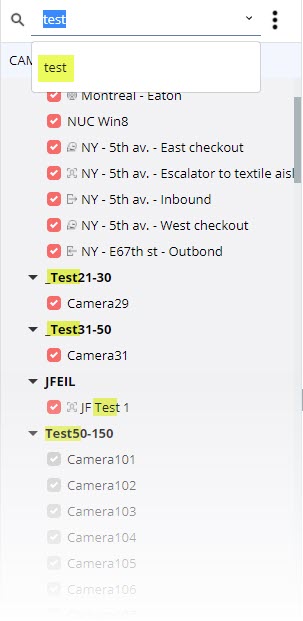
To select a camera, enter its edge player name in the Search field. Note that you can also perform other types of searches. For example, if you enter the name of a Camera group, all the cameras in that group will be selected. You can search by full or partial edge player name, group name or even edge player tag.
Queries can be very useful because they let you select groups of cameras based on a series of filters. You can create a query using one or more filters and they will all apply when the query is selected. Available filters are: edge player name, serial number, tag, type, status, alert, version and technical profile. Once your query has been created and saved, you will be able to select it from this pull-down field.
The Option button lets you perform the following operations: create, edit or delete a query.
Creating a new query
Hover your mouse cursor over the option button.
Select Create query.
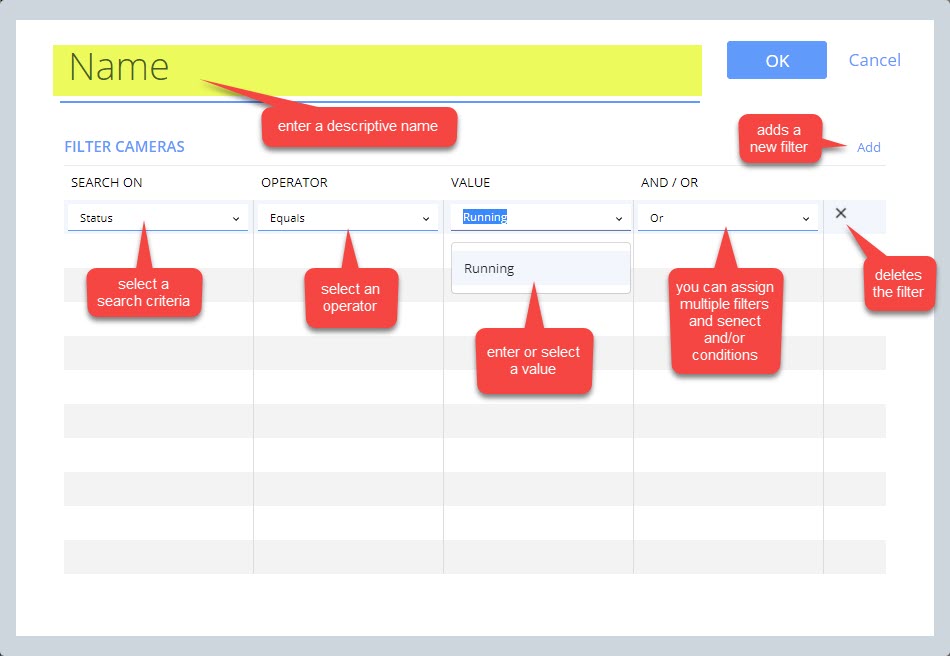
Assign a descriptive name for the query.
Select a filter to search on.
Select an operator. Note, the list of operator changes based on the type of filter you chose.
Select or enter a value to filter on.
Select a conditions if you want to chain together multiple filters. For example you could create a query that looks for cameras that share the same name and tag and are currently operational (running).
When you are finished, click OK to save your changes.