Edge device technical profile
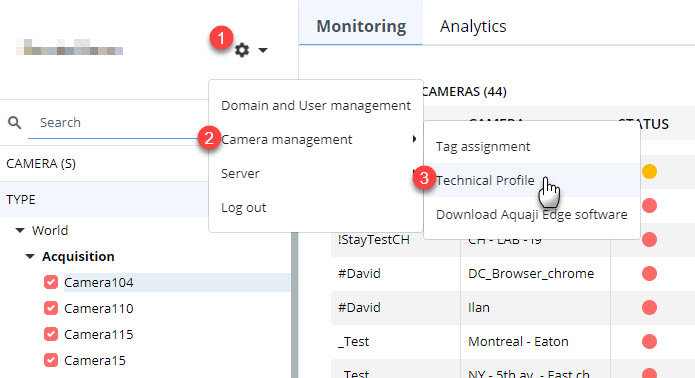
- Select the Main Menu (gear icon) near the top of the screen.
- Select Camera management
- Select Technical Profile
The Technical Profile window will open.
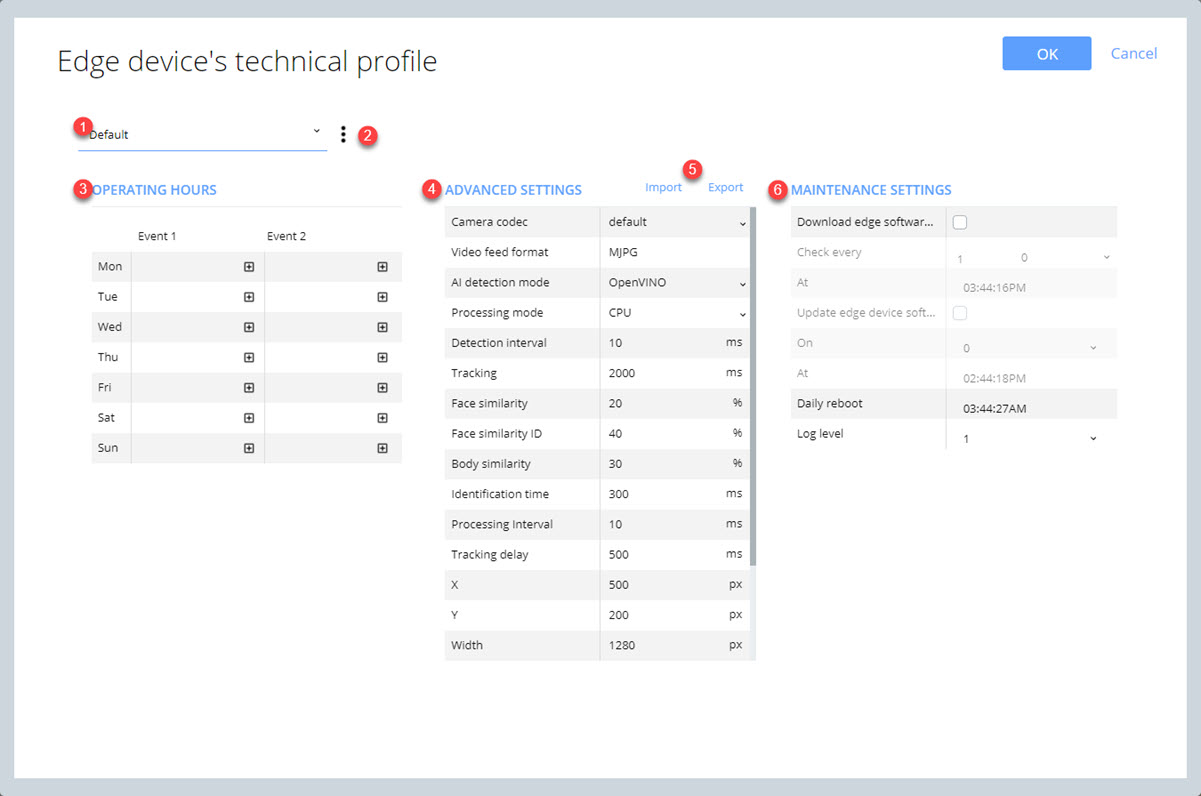
- Technical profile pull-down field. Select a profile to apply to the current device.
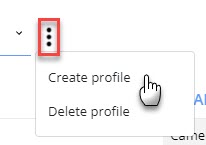
- Options: Click to create or delete a profile.
- Operating hours: Select the time you want your cameras to turn on and off.
- Advanced settings: You can modify advanced camera and detection parameters via these options.
- Camera codec:
- Default (Aquaji uses the best setting automatically)
- DirectShow
- ffmpeg
- Media foundation
- Winrt
- Video for windows
- Video feed format:
- MJPEG (motion JPEG)
- H264
- YUY2
- AI detection mode: Refers to the AI method used to process captured video frames.
- Regular
- DNN
- OpenVINO (by default)
- Processing mode: Processor used to run the detection algorithm.
- CPU (by default)
- GPU
- Myriad
- Detection interval: Set the minimum time between detections, expressed in milliseconds.
- Tracking: The delay after which a person is expected to be out of range, expressed in milliseconds.
- Face similarity: Minimum similarity value that supposes a person is re-identified based on facial traits.
- Face similarity ID: Minimum similarity value that supposes a person is re-identified when the quality of the image is sufficient for identification.
- Body similarity: Minimum similarity value that supposes a person is re-identified based on body shape.
- Identification time: Minimum time a person should be detected less than which we suppose it's a "fake" detection, expressed in milliseconds.
- Processing interval: Represents the delay between detections. The longer the interval, the less detections will be performed, which in turn lowers the CPU load. Note that increasing the value too high can impact accuracy, because some detections may be missed.
- Tracking delay: The maximum time after which the tracker should be reinitialized, expressed in milliseconds.
- X: Detection area position from the left, expressed in pixels.
- Y: Detection area position from the top, expressed in pixels.
- Width: Detection area width, expressed in pixels.
- Height: Detection area height, expressed in pixels.
- Purge: Maximum number of days to store data (only available if the Save Data option is enabled).
- Continuous presence time: This is the period during which a person retains their ID before it gets erased. This feature prevents Aquaji from counting the same individual multiple times. This value is expressed in minutes.
- Blur threshold: Represents the level of tolerance to blurred images. This lets you force the software to run an analysis on blurred faces caused by poor image quality or an improper focal length setting. For example, the image of someone who is far from the camera may appear blurred until that person gets closer. This way, we can force the software to attribute a detection to the same person whether we have blurred and clear images to analyze, or we can have the software ignore all blurred images altogether. We recommend values between 20 and 60 for standard resolution cameras but this can be increased to 500 to 1000 on more powerful cameras. The higher the value, the less blurred images are recognized. If you enter a value of 0, the software will attempt to recognize anything that resembles a face, even if it's very blurred.
- Store metrics: Save the embeddings to the hard disk.
- Store footage: Save the detected face images to the disk for debugging purposes.
- Live preview: Lets you display a preview video locally. (Please note: this feature consumes more CPU power and memory resources so it's best reserved for more powerful PCs).
- Multithreading: This feature allows the simultaneous processing of multiple embedding. This feature is enabled by default.
- Rotation: Lets you rotate the image by 90 degrees or 180 degrees so you don't have to physically rotate the camera's orientation.
- You can import or export Edge device technical profiles via these links.
- Maintenance settings: These settings let you change how the Edge device software behaves.
- Download Edge software: Select this option if you want the Edge device to automatically download new software updates.
- Check every X day/week/month: Sets the interval at which Edge device will look for a new software version.
- At: sets the time at at which Edge device will look for a new software version.
- Update Edge device software: Select this option if you want the Edge device to automatically install a newly downloaded software update.
- On: Select on which day of the week to install a software update. Select ASAP to install as soon as the new version has been downloaded.
- At: sets the time at at which Edge device will install a new software version.
- Daily reboot: Set the time at which you want the Edge device to reboot (this is a daily event and non-optional).
- Log level: Select the type of log information to collect. Options are:
- DEBUG
- INFO
- WARN
- ERROR