How to connect Aquaji to QL
Aquaji can trigger content on Navori QL digital signage players based on the viewer's profile. In order to do so, you must connect Aquaji to your QL Players.
IMPORTANT:
- These instructions only apply to QL Cloud/SaaS at the moment. They will be updated when they apply to QL On-Premise (next release).
- You must be using QL Player Cloud/SaaS version 2.2.6 to use this feature.
DOWNLOAD Windows Update Patch – 2.2.6
DOWNLOAD Android Stix 3500 – 2.2.6
Navori has implemented a security feature that lets your QL Player's display Aquaji's Context Aware Data Feeds.
Step 1
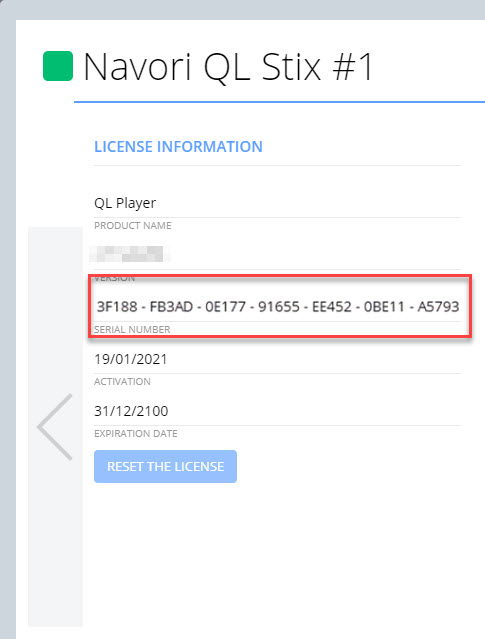
- In QL Content Manager, open the QL Player properties, then locate and copy the serial number to your clipboard (highlight the entire number and hit Ctrl+C).
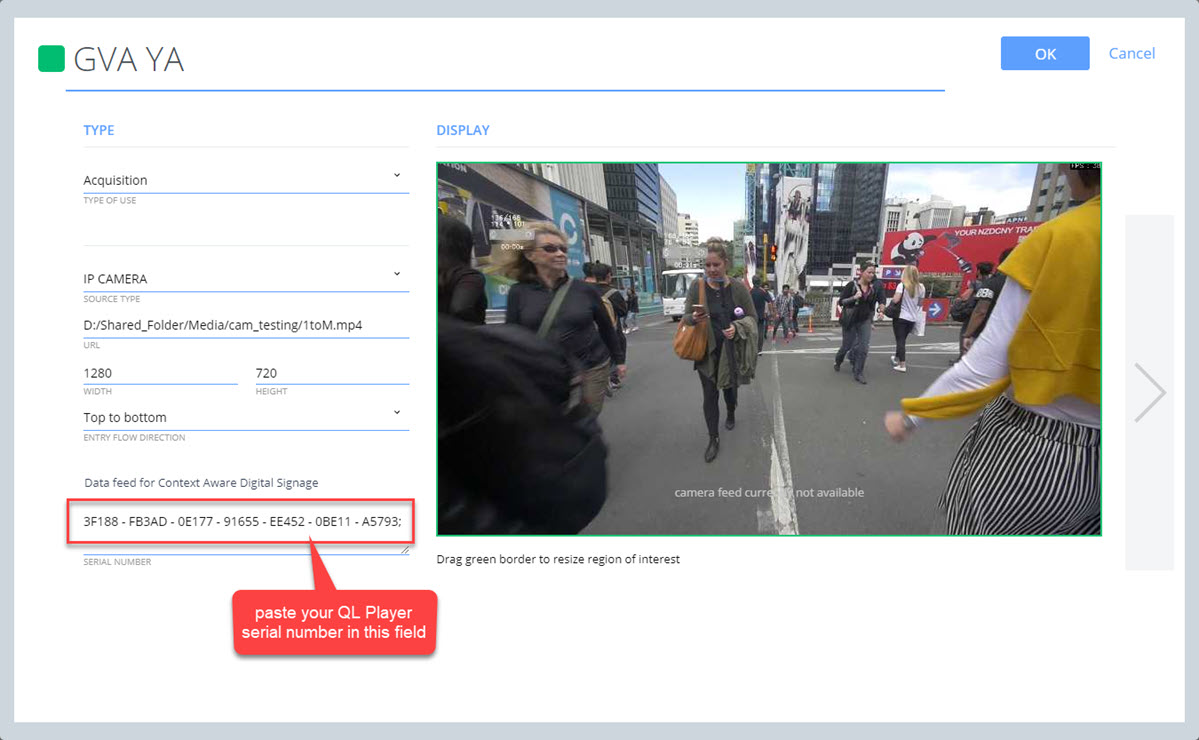
- Switch to Aquaji. Open your Edge Device properties.
- Click in the serial number field located under "Data feed for Context Aware Digital Signage" and paste the QL Player serial number (Ctrl+V).
- Next, click the Data feed for Context Aware Digital Signage link above the serial number field.
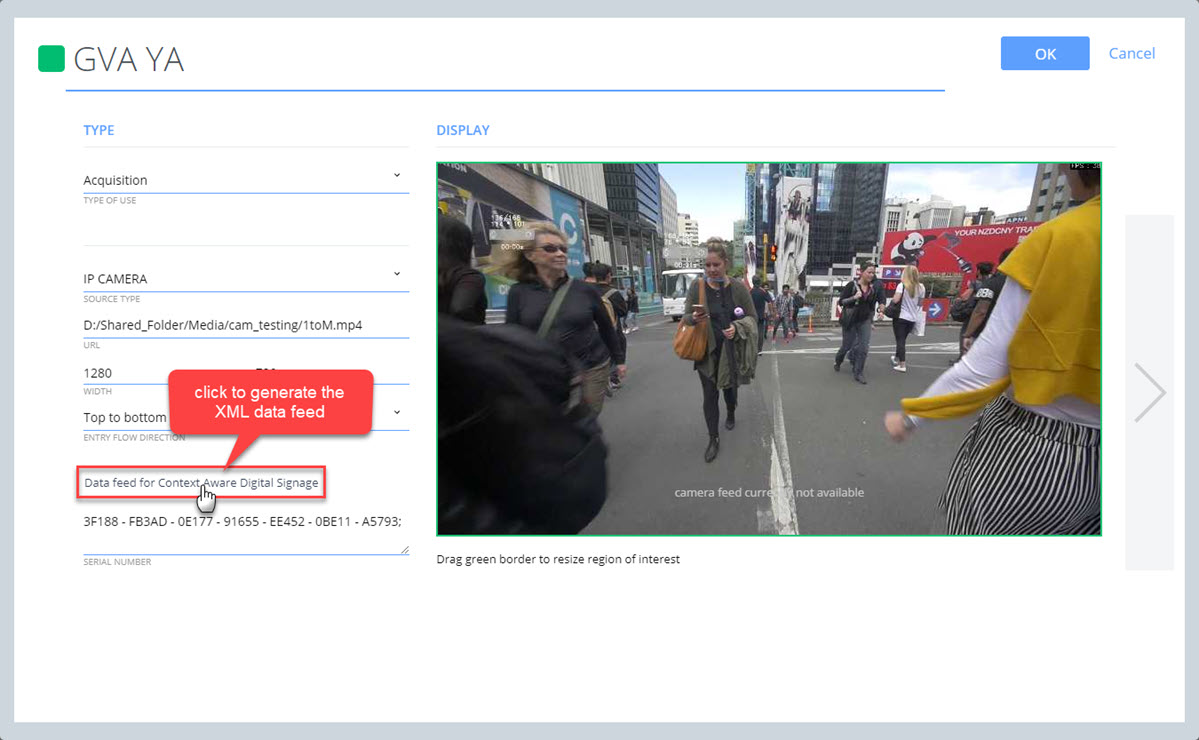
- A new web browser tab will open with the XML data visible. Highlight the URL in the address field and copy it to the clipboard.
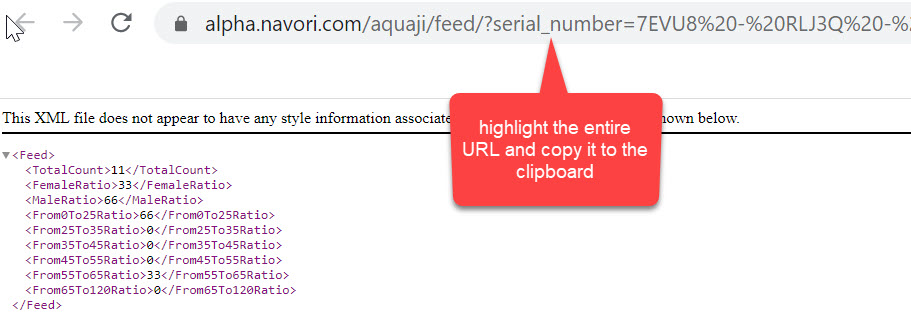
You can now paste this URL in QL Content Manager to enable Rule-Based Playback or Rule-Based Triggering.
Looking at the example above, you could either play or trigger a specific ad or content based on the total visitor count, female ratio, male ratio or age range.
IMPORTANT: You must add a QL Player serial number to your Aquaji Edge Player properties in the appropriate field to generate a valid Context Aware feed for your digital signage.