How to create, delete or edit user role profiles
User role profiles determine what a user can do on the Aquaji platform.
Aquaji administrators can create, delete or edit user role profiles by following these steps.
How to access Role profile window
Open the Domain and User management window and click the right arrow to open the next page.
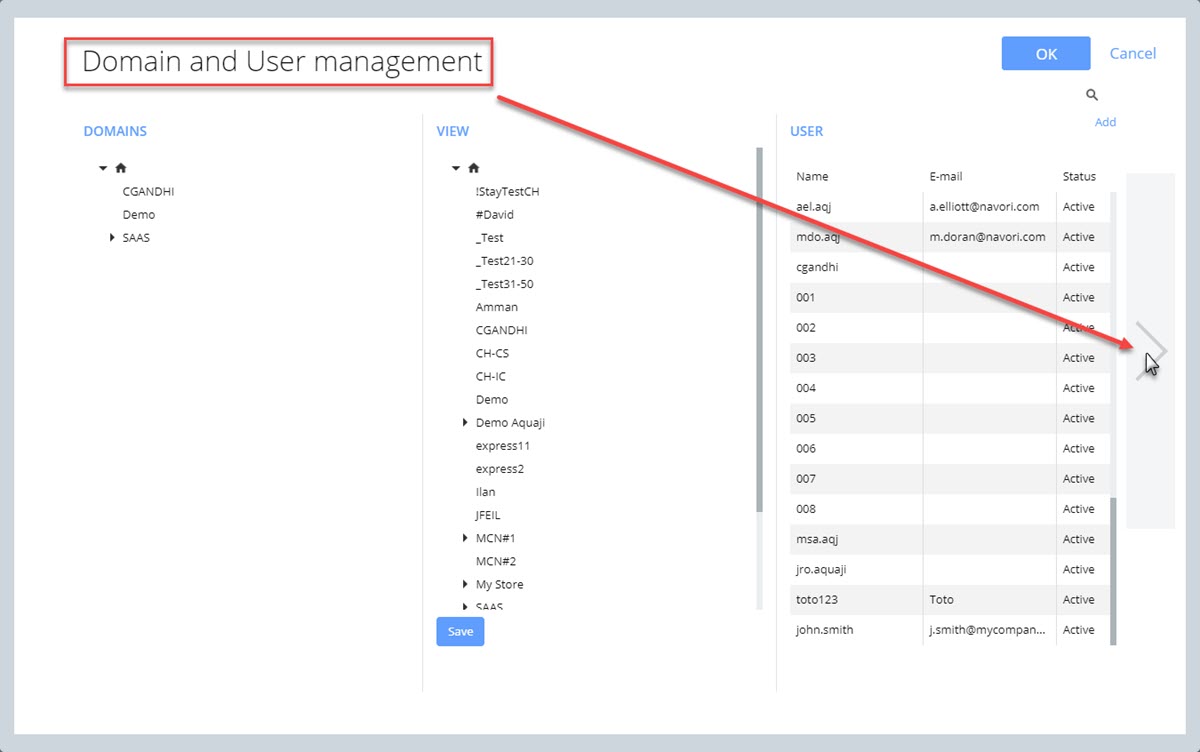
The Role profile window will appear.
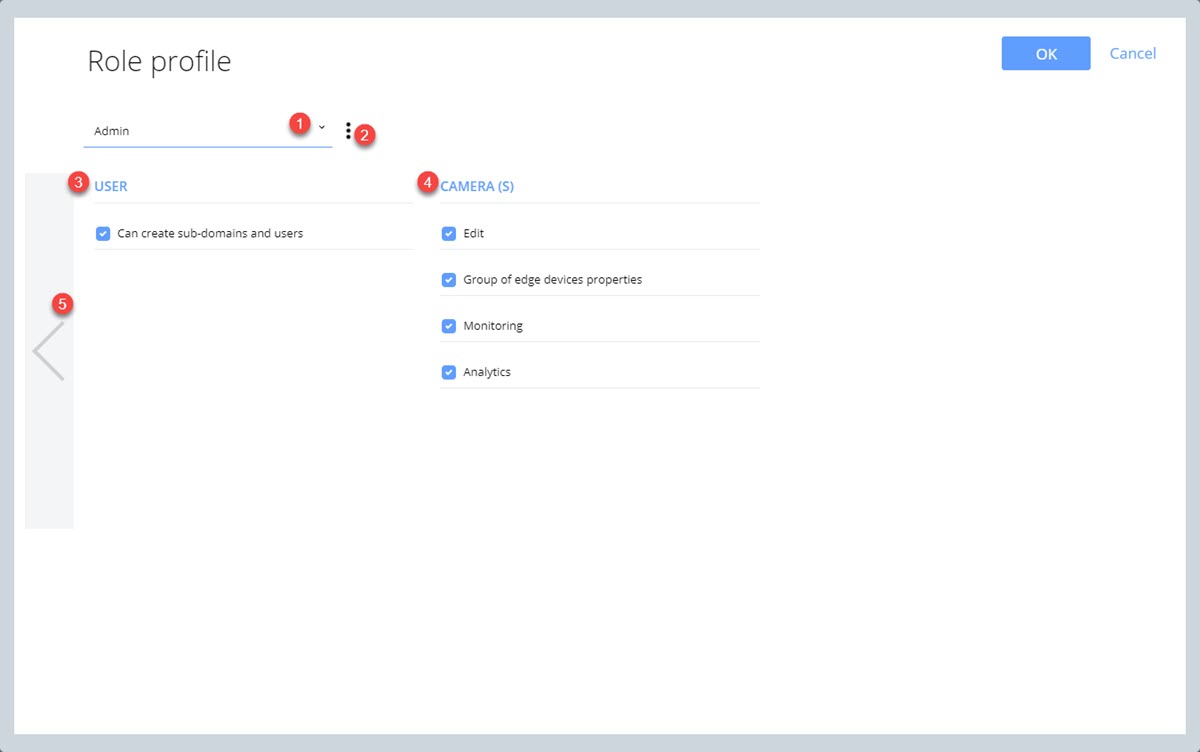
- The Role profile pull-down selection field lets you select a role profile to edit.
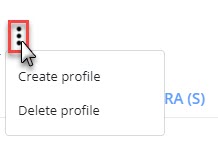
- The Edit button lets you select the following options:
- Create profile: Lets you create and name a new role profile.
- Delete profile: Lets you delete the currently selected role profile.
- The USER section has a single option, the "Can create sub-domains and users" selection box.
When you select this option, you are creating an administrator role profile as only administrators can create domains and users. - The CAMERA(S) section has 4 options:
- Edit: This option lets the user access the Edit menu (as when you right-click on an Group name to edit it's properties).
- Group of Edge device properties: This option lets the user access the Edge device properties via double-click or right-click > Edit option.
- Monitoring: This option lets the user access the Monitoring window.
- Analytics: This option lets the user access the Analytics window.
- Clicking the left arrow returns you to the previous page.