Domain and User Management
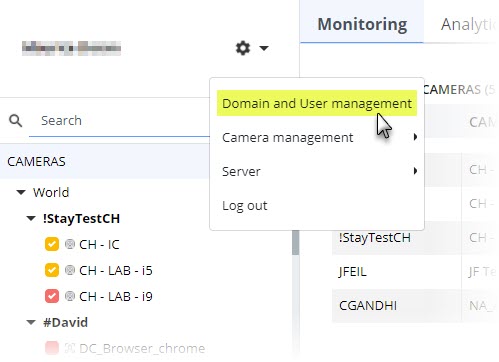
Information about the Domain and User management window goes here.
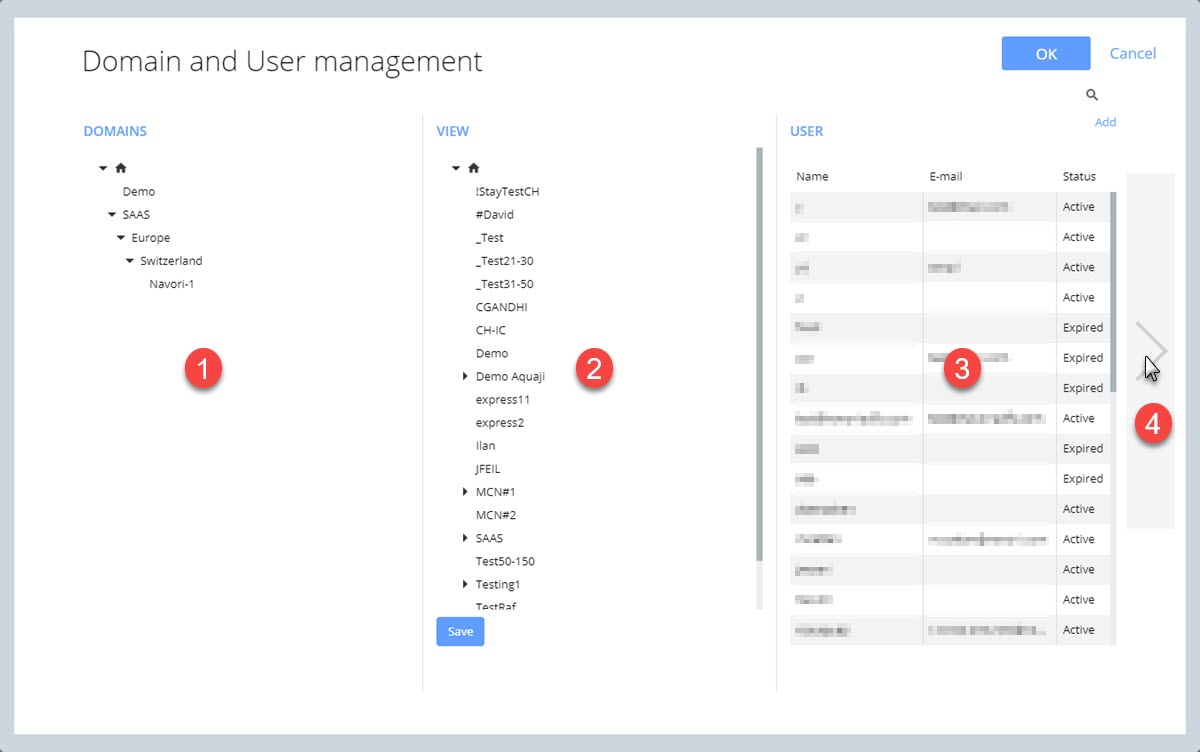
- The DOMAINS section shows all the domains that have been created for the tenant.
When you begin using the software, there will only be a root level and you must create the domains and sub-domains below to assign users to specific groups of Edge devices.
NOTE: You should create your groups and sub-groups in the UI and assign Edge devices before you create any domains. - The VIEW section is where you will find your group and sub-groups. You use the View section to select individual groups and sub-groups you wish to assign to your domains.
- The USER section is where you create and modify user accounts that are assigned to the root level (unrestricted users) or your domains (users with access to the specific domain).
- Click here to learn how to create a new user account.
- Click here to learn how to edit an existing user account.
- Click the arrow for the next page.
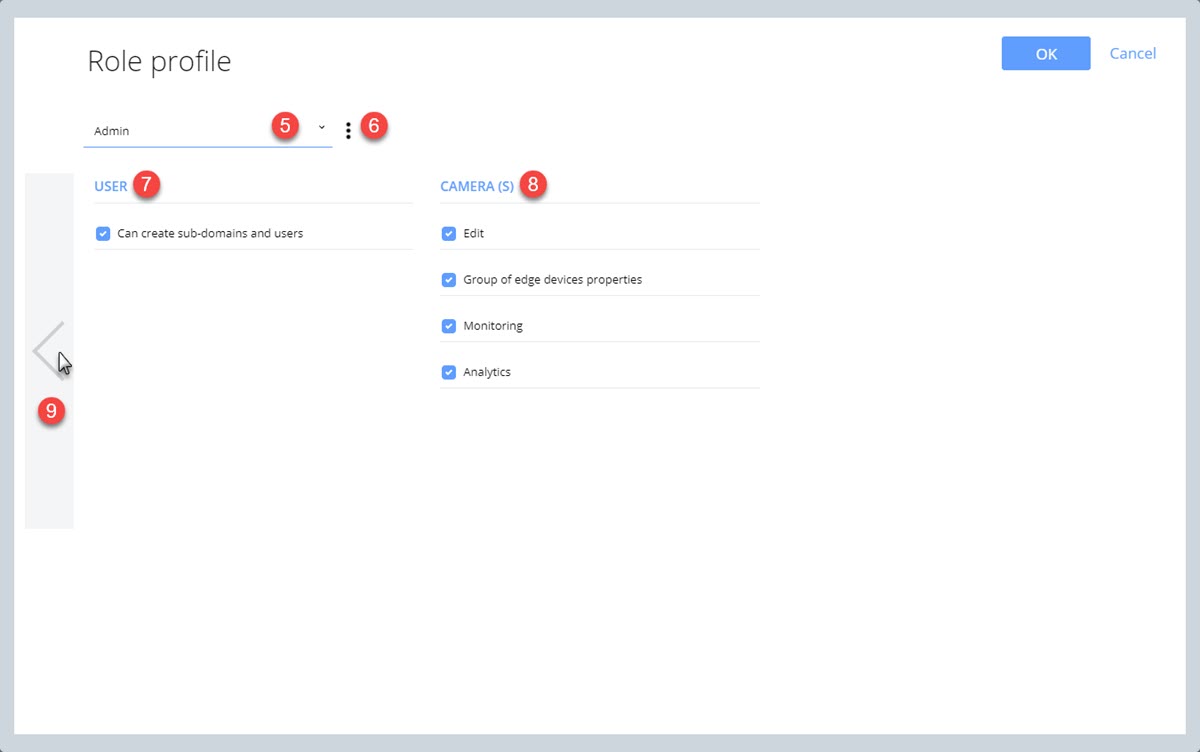
- User profile selection pull-down field.
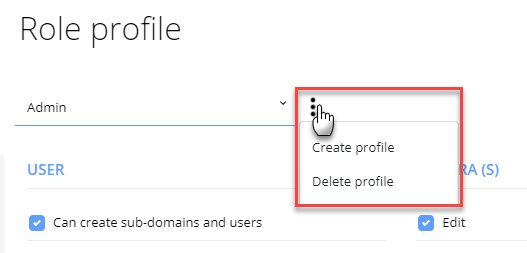
- User profile options button.
- USER section
- Selecting the option Can create sub-domain and users, means this is an administrator profile. Only administrators can create sub-domains and users.
- CAMERA(S) section
- Select the Edit option and users will be allowed to access and edit the Edge device properties via double-click.
- Select the Group of edge device properties option and users will be allowed to access and edit Edge device group properties.
- Select the Monitoring option to let the user access the monitoring reports via the tab at the top of the screen.
- Select the Analytics option to let the user access the analytics reports via the tab at the top of the screen.
- Click the arrow to return to the previous page.