How to create, delete or edit user accounts
Aquaji administrators can create, delete or edit user accounts by following these steps.
Creating a new user with the right-click menu
In the Domain and User management window, select a domain and right-click in the USER table.
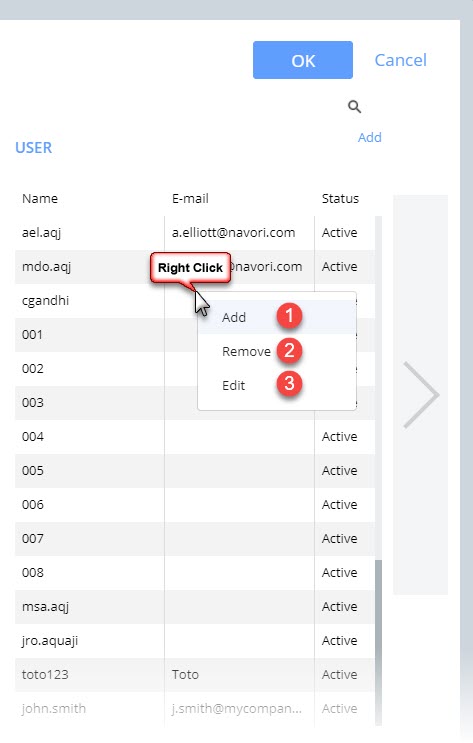
- Click Add to create a new user account.
- Click Remove to delete the currently selected user account.
- Click Edit or double-click on a user name to edit the user account.
Alternate option
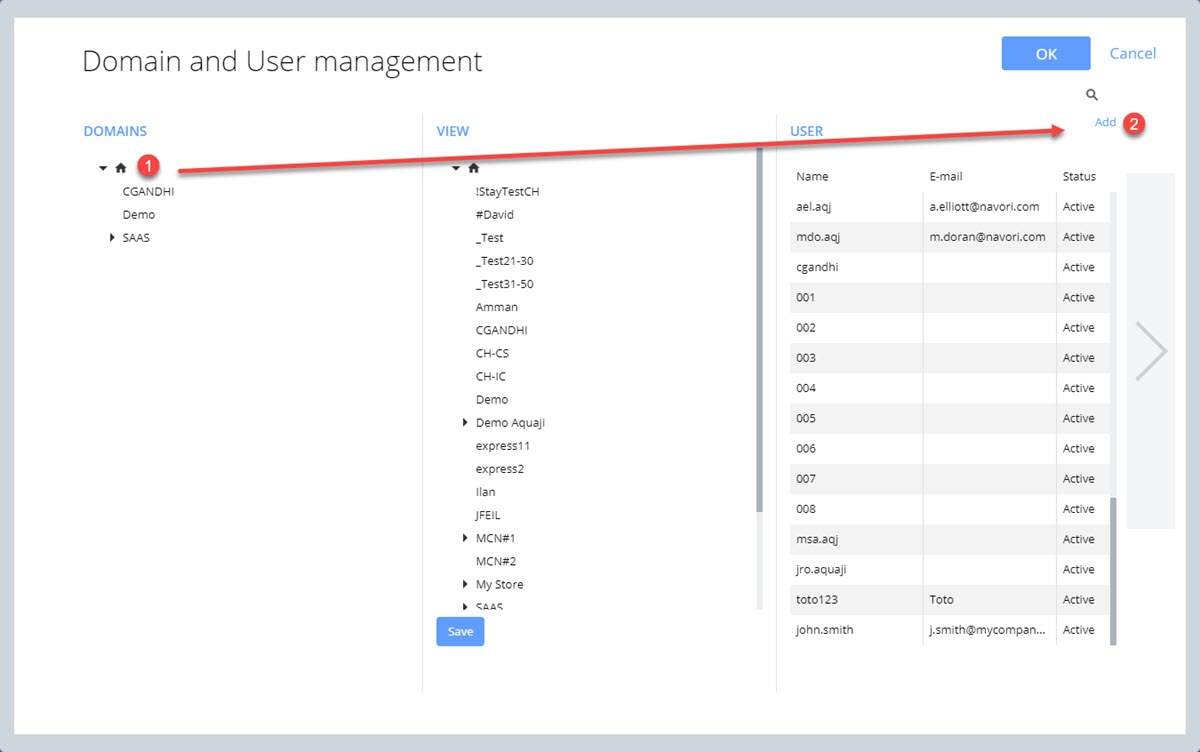
- Select a domain.
- Click the Add link above the USER table.
The User account window
The user account window is divided into 3 sections: GENERAL, ACCOUNT and ASSIGN TECHNICAL PROFILE.
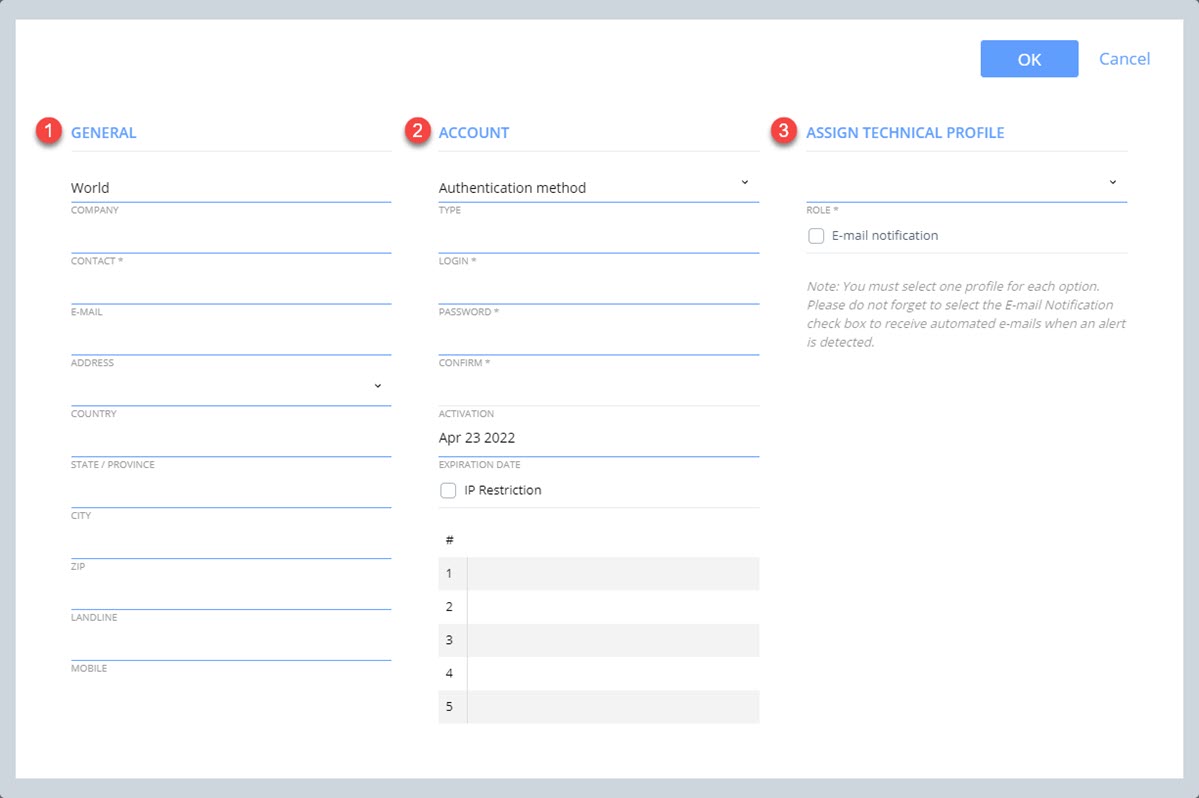
- GENERAL section
- COMPANY will show information retrieved from the Navori Extranet. This information can't be edited.
- CONTACT (*mandatory field) is where you enter the user's name.
- E-MAIL is where you enter the user's email address. This is only necessary if you want this user to receive automated email alerts.
- ADDRESS is the user's physical address.
- COUNTRY is a pull-down menu where you select the user's country of residence.
- STATE / PROVINCE is the user's state or province of residence.
- CITY is the user's city of residence.
- ZIP is the user's zip or postal code.
- LANDLINE is the user's telephone number.
- MOBILE is the user's mobile number.
- ACCOUNT section
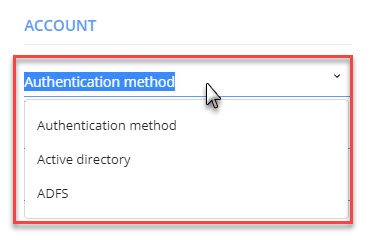
- Authentication method is a pull-down menu where you indicate if Aquaji will use its own authentication, Active Directory or ADFS.
- LOGIN (*mandatory field) is where you enter the user's login name. This is an alphanumeric field and it is case-sensitive.
- PASSWORD (*mandatory field) is where you enter the user's password. This is an alphanumeric field and it is case-sensitive.
- CONFIRM (*mandatory field) is where you re-enter the user's password to confirm it.
- EXPIRATION DATE: By default, all new user accounts expire one year after their creation date. If you want to create a "permanent" user account that does not need to be reinstated, you can enter a date far in the future (ex, Jan 01 2100).
- IP RESTRICTION: By default, users can log in from any location. When you select the IP RESTRICTION box, you are restricting login from one or more specific IP addresses (you can also use wildcards such as 198.68.*) to restrict access to a network segment. When active, users will only be allowed to login from an authorized IP. This can be used to prevent users from logging into the system from home our from locations outside the office.
- ASSIGN TECHNICAL PROFILE section
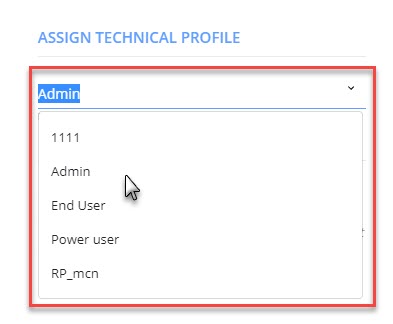
- ROLE (*mandatory field) is where you select a user role for this account. User roles determine which software features the user has access to, and what they are allowed to do in Aquaji.
- Admin: Unrestricted account. Administrators can create domains, sub-domains, and other user accounts.
- End user: Most restricted user account. User is able to navigate the UI but has no access to edit, Edge device properties, monitoring, and analytics.
- Power user: Can't create other users but otherwise unrestricted.
NOTE: Administrators can create, delete and edit User role profiles. Click here for more details.
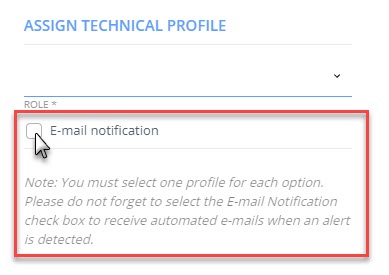
- E-mail notification: When you select this box, Aquaji server will send out alert notification emails to the user.