The Alerts and Events window
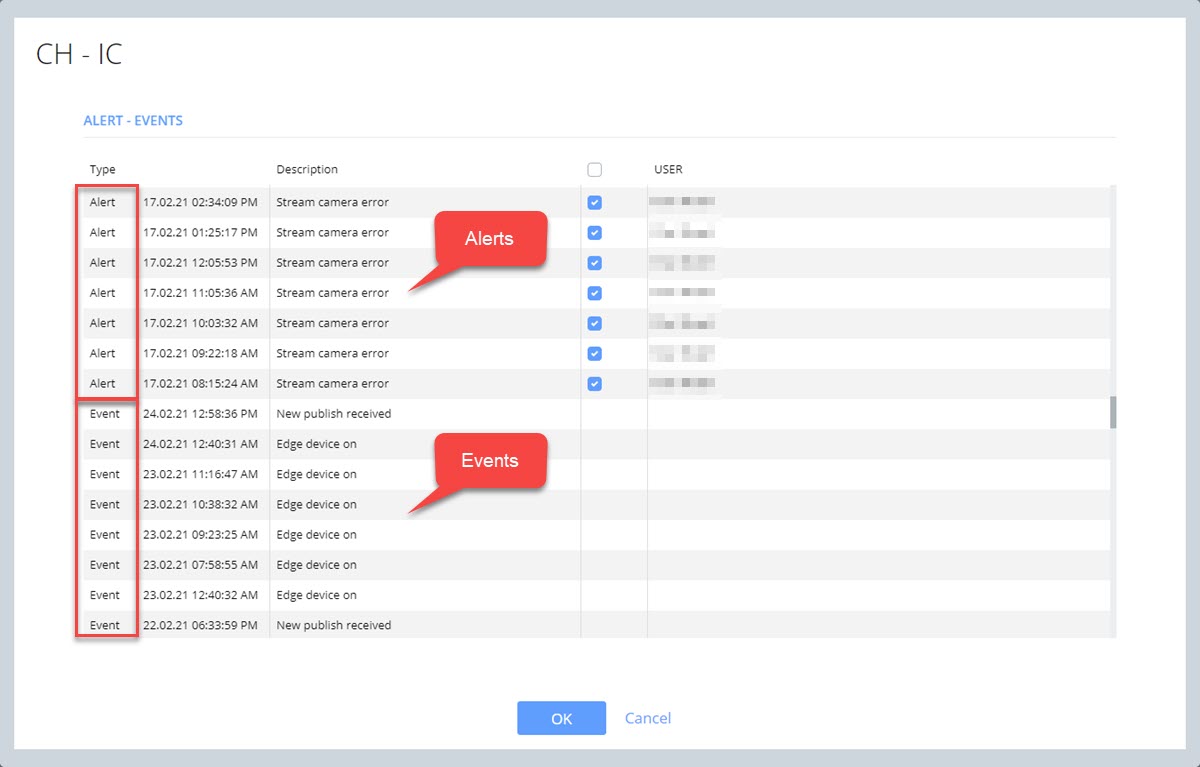
This window will show all recorded alerts and events. Aquaji server retrieves this information from each edge player at a preset interval and displays the results in a table format.
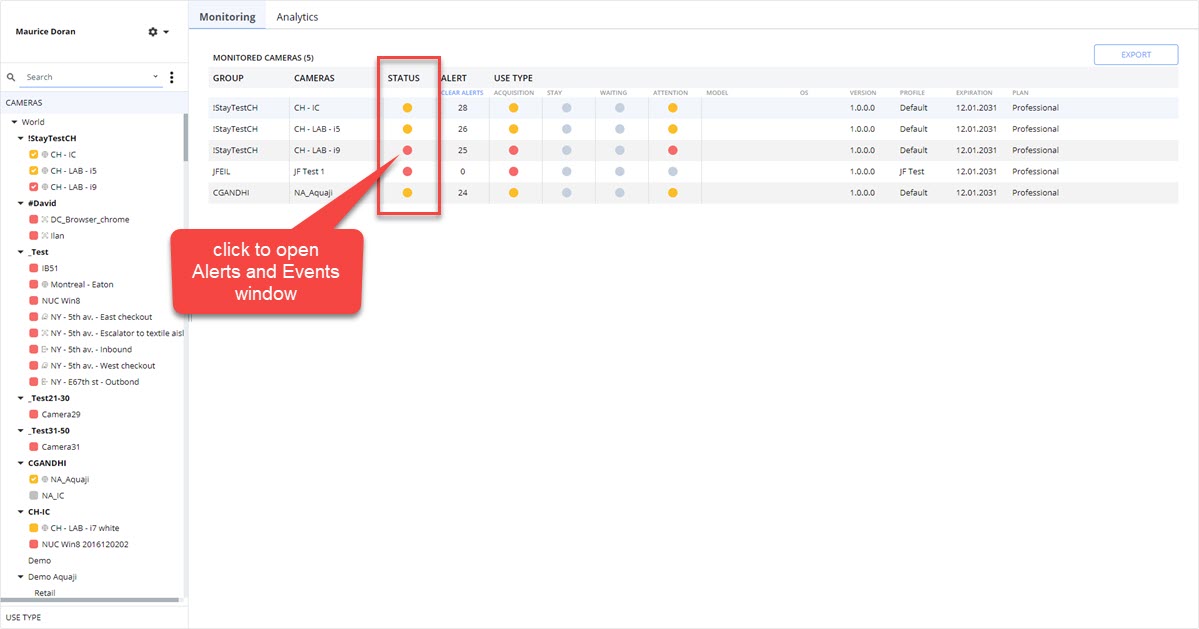
To access this window, click on any status indicator in the Monitoring window's STATUS column.
Alerts
- Potential issues that the user should be aware of.
- Examples are: Camera error (no video stream detected), etc.
- Show up as a yellow status indicator in the Aquaji user interface.
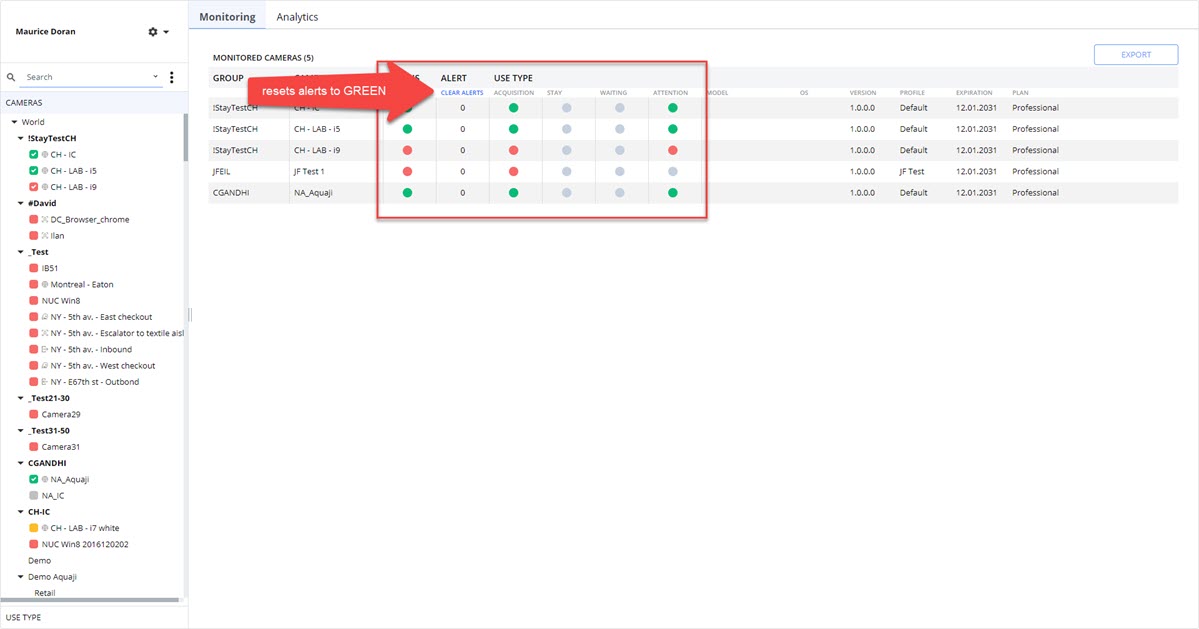
- Alerts must be reset manually. Once an alert has been reset, the status indicator will turn green.
Resetting the Edge player status
There are two methods you can use to reset an edge player and camera's status .
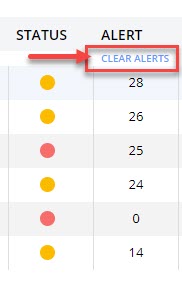
- In the Monitoring window, locate the CLEAR ALERTS button at the top of the ALERT column. Click this button to clear all alerts, reset the counter to 0 and restore the STATUS and TYPE colors to green.
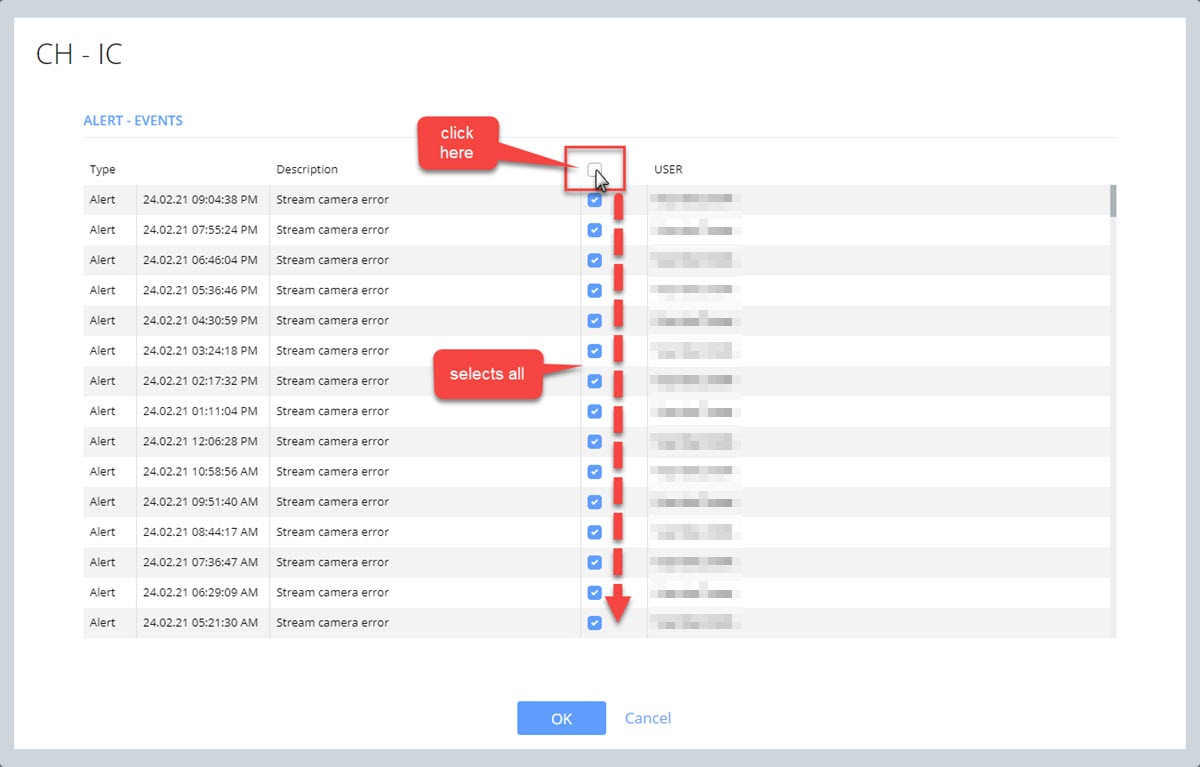
- In the Alerts and Events window, click the empty check-box at the top of the table column to automatically select every recorded alert, then click OK.
This will also reset all edge players and cameras back to green status.
Events
- Events do not represent issues with the hardware or software. This is just general information about the normal, day-to-day operation of the hardware and software.
- Events can be useful in diagnosing the cause of an issue.
- Examples are: edge player (edge device) has been turned on, new publish event recorded, etc.