UI overview
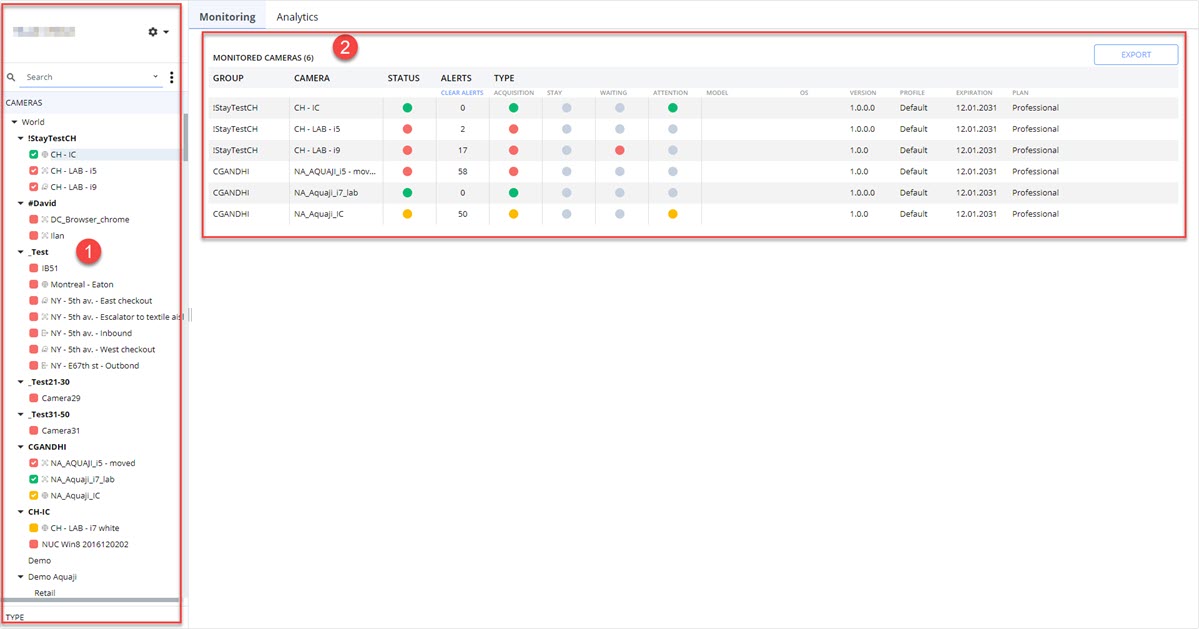
The Aquaji UI is divided into two main sections.
- The left side is where you will find the list of your Edge players (cameras). This section has two types of views: Camera and Type.
- In the Cameras view, you can organize your Edge players by location or by any criteria of your choice.
- In the Type view, your Edge players appear grouped by their type of use. If you assign an Edge player to a different use in its Technical Profile, it will appear in a different group.
- On right side you will find the Monitoring and Analytics windows which are accessible via the two tabs at the top of the screen.
Switching views
When you click the CAMERAS tab, the TYPE window collapses to the bottom.
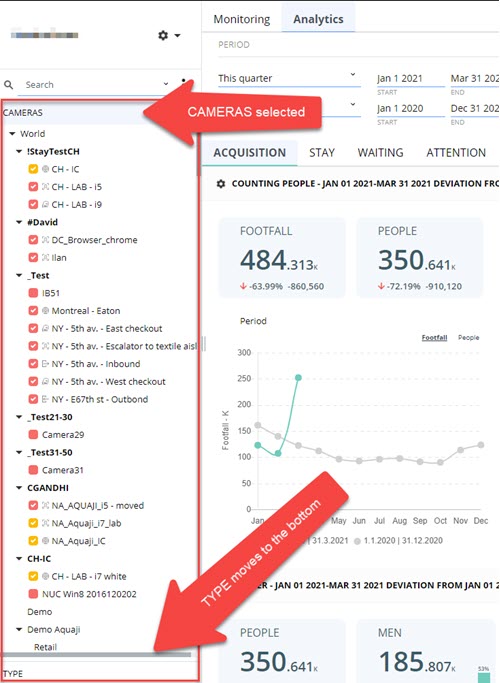
When you click the TYPE tab, the window expands upwards to reveal all the Edge players grouped by type of use.
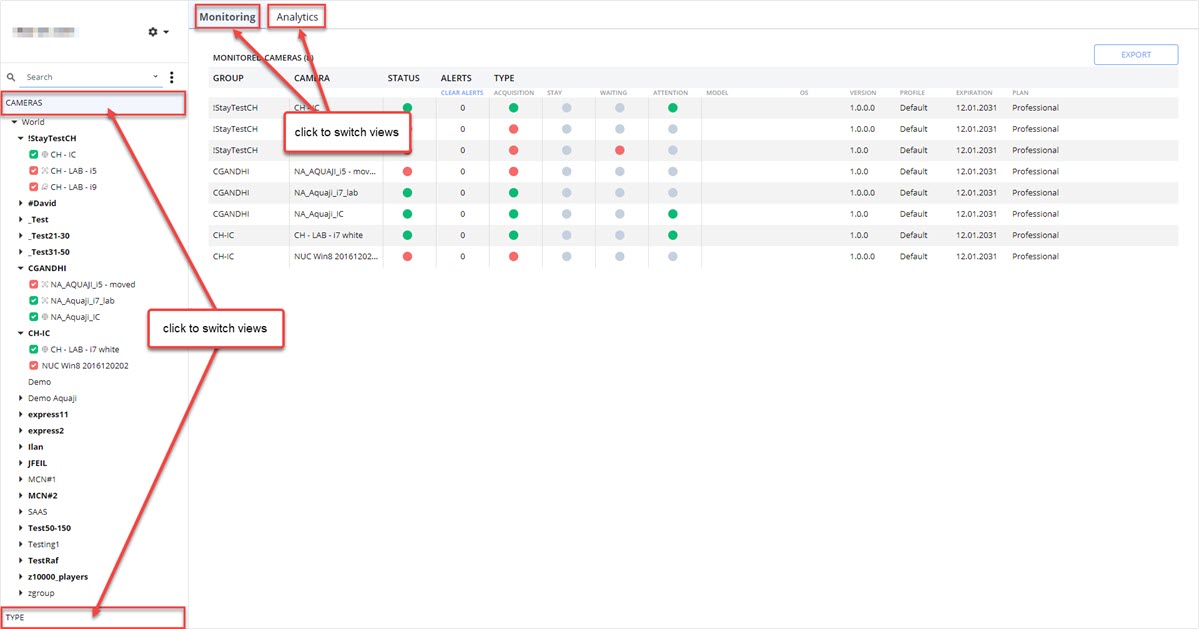
The Camera and Type views sort your edge players differently and when you click on one tab, the other one collapses.
CAMERA View
- Lets you organize your edge players by physical areas, for example by building, room, zone or any other grouping that you need.
- You should create groups to organize your edge players otherwise they will all show up in a single group.
- You can create complex, multi-level groupings to recreate any scenario.
For example: - Country
- County, province or state
- Store name or number
- Area or department
TYPE View
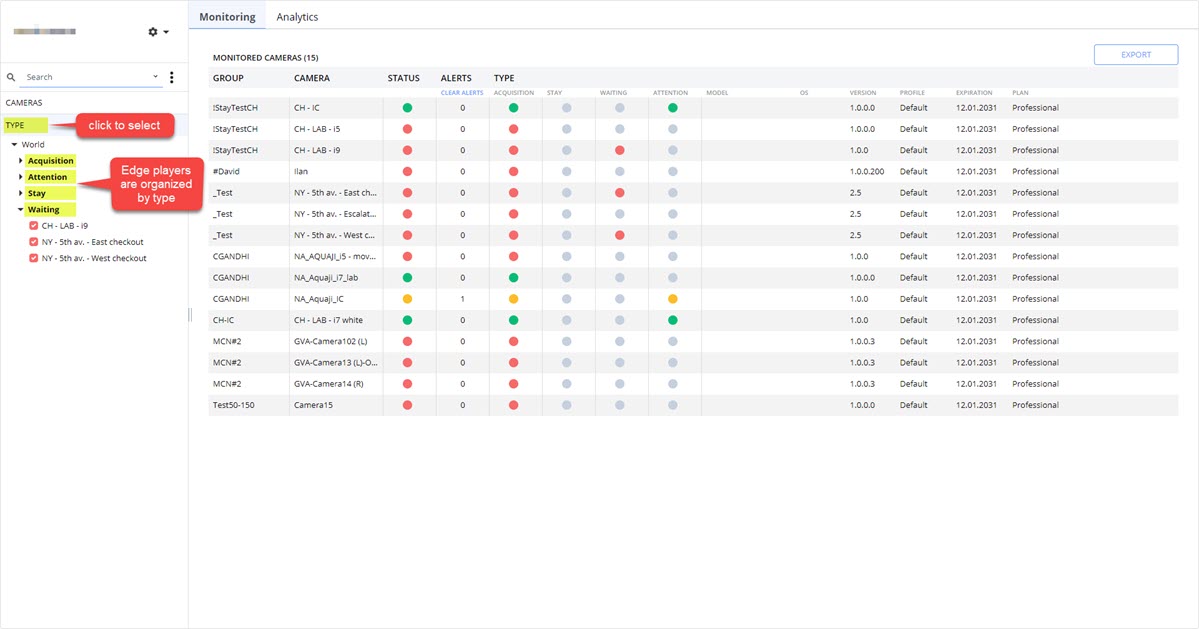
- Groups your edge players by type:
- Acquisition — shows cameras that record footfall and people data (number of people entering and exiting).
- Attention — shows cameras that record the viewer's attention span or time spent looking.
- Stay — shows cameras that record each visitor's length of stay.
- Waiting — shows cameras that record the time each visitor spends waiting in a queue or waiting for service.
- This is an automated process based on the type assigned in each edge player's Technical Profile.