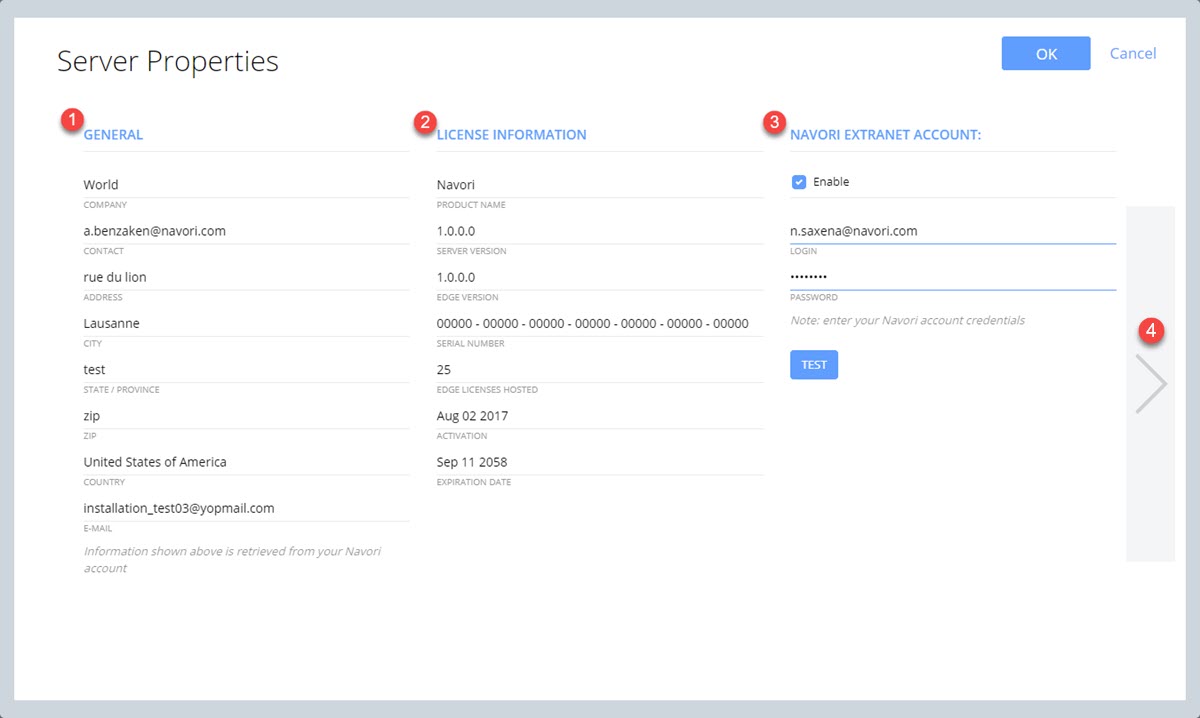
GENERAL section: Displays your company's information. This data is retrieved from the Navori extranet and cannot be edited.
LICENSE INFORMATION: Displays the software license information.
Product Name
Aquaji Serversoftware version
Aquaji Edge software version
Aquaji license number
Aquaji Edge licenses hosted represents the total number of Edge devices your server can manage.
Aquaji software activation date
Aquaji software expiration date
NAVORI EXTRANET ACCOUNT: This is where you enter your Navori Extranet user account. These are the credentials you use to log in the Navori Extranet.
Enable check-box: When selected, your Aquaji server will be allowed to access the Navori Extranet to retrieve new Edge software licenses or to download software updates.
LOGIN: Your Navori Extranet login name.
PASSWORD: Your Navori Extranet password.
TEST button: Click to initiate a connection with the Navori Extranet to confirm your Aquaji server can communicate with.
Click the arrow for the next page.
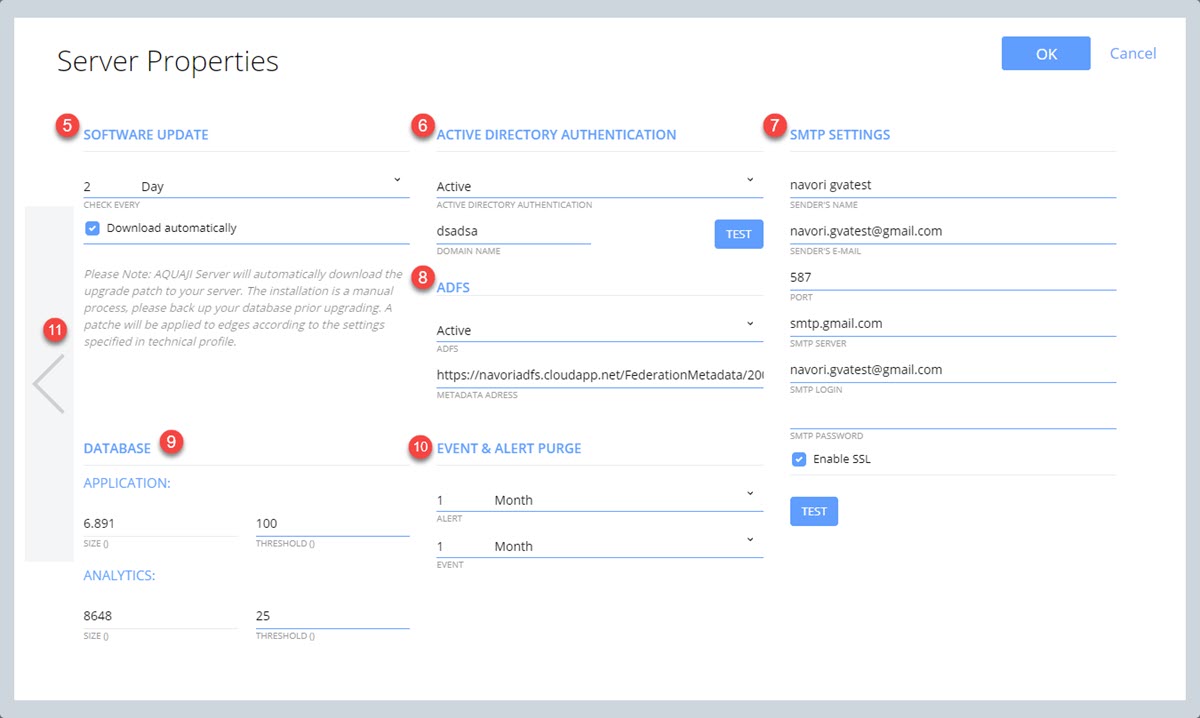
SOFTWARE UPDATE: Displays the software update settings.
CHECK EVERY: Enter the interval at which Aquaji Server will connect to the Navori Extranet to detect when there is a software update.
When you select the Download automatically check-box, Aquaji Server will also download software updates when they become available.
ACTIVE DIRECTORY AUTHENTICATION: options are ACTIVE and INACTIVE. When active, Aquaji Server will use AD authentication instead of it's own user authentication. When you select active, you must enter a valid DOMAIN NAME and click the TEST button to confirm your settings work.
SMTP SETTINGS: Configure your SMTP email server so Aquaji can send out alert notifications to your users.
SENDER'S NAME: Enter the name you wish to display in the email sender field.
SENDER'S EMAIL: Enter the email address you have previously configured in your SMTP Server. This will be the address Aquaji Server will use for its outbound emails.
SMTP SERVER: Enter the name of your SMTP Server
SMTP LOGIN: Enter the login name of the email account you created for Aquaji Server.
SMTP PASSWORD: Enter the password you created for Aquaji Server's email account.
Enable SSL: Select this check-box to enable SSL for your SMTP Server connection.
TEST: Click the Test button to initiate a connection to the SMTP Server using the credentials entered above.
ADFS: Configure these settings to let Aquaji use Active Directory Federation Services (ADFS) for single sign-on access instead of it's own user authentication. When you select active, you must enter a valid METADATA ADDRESS.
DATABASE: This section lets you see the current size of the APPLICATION and ANALYTICS databases. This information will appear in the SIZE field. The THRESHOLD field represents when an alert will be shown based on the database size.
EVENT & ALERT PURGE: These fields let you enter the interval at which the ALERT and EVENT databases will be purged. Enter a numeric value in the first field and then select the interval (Day, Week, Month). For example, entering: 2 - Week will schedule a database purge every two weeks.